Mentoring Modules External Registration Guide

Enhancing Motivation Using the CARES Mentoring Model
Optimizing the Practice of Mentoring 101
Optimizing the Practice of Mentoring 102

To Register

Enter all fields and click "Submit" at the bottom
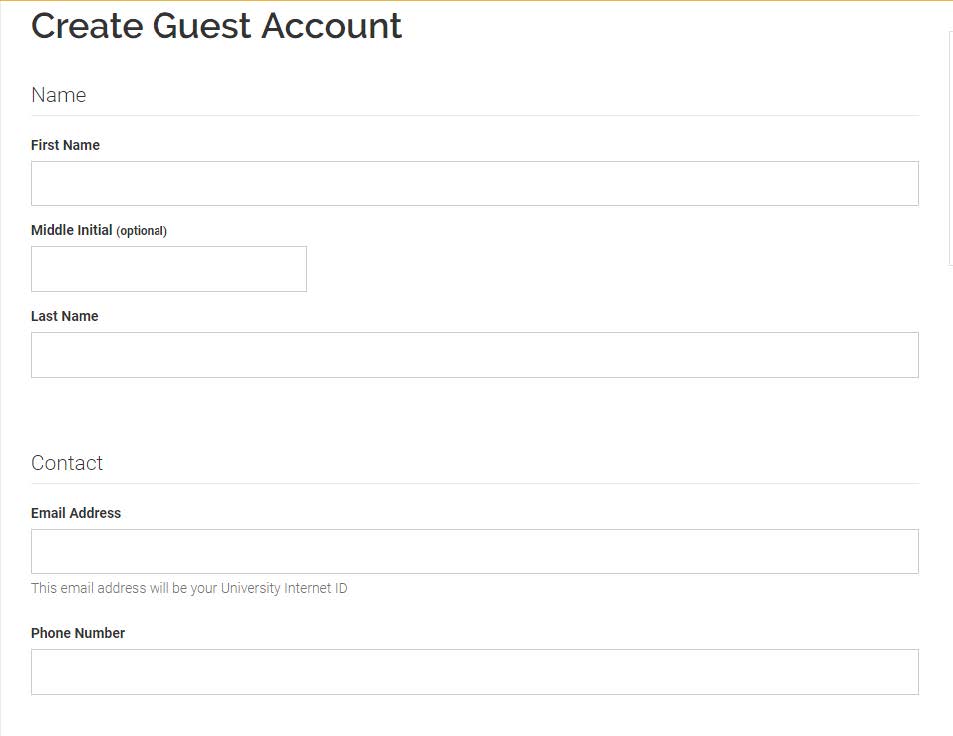
A screenshot of the top of the "Create Guest Account" page.

Wait one hour after creating a Guest Account before enrolling in training.

If you get an "Access Denied" message while trying to launch a course, contact Technology Help at 612-301-4357 or training@umn.edu. Please state "I have a guest account, and I enrolled in a course in Training Hub, but I can't access the training in Canvas."

Visit https://z.umn.edu/ctsi_mentoring. Sign in using the email address and password you used to create your guest account.

A screenshot that shows the "Sign In" fields of the training hub.

Select the course you wish to enroll in.
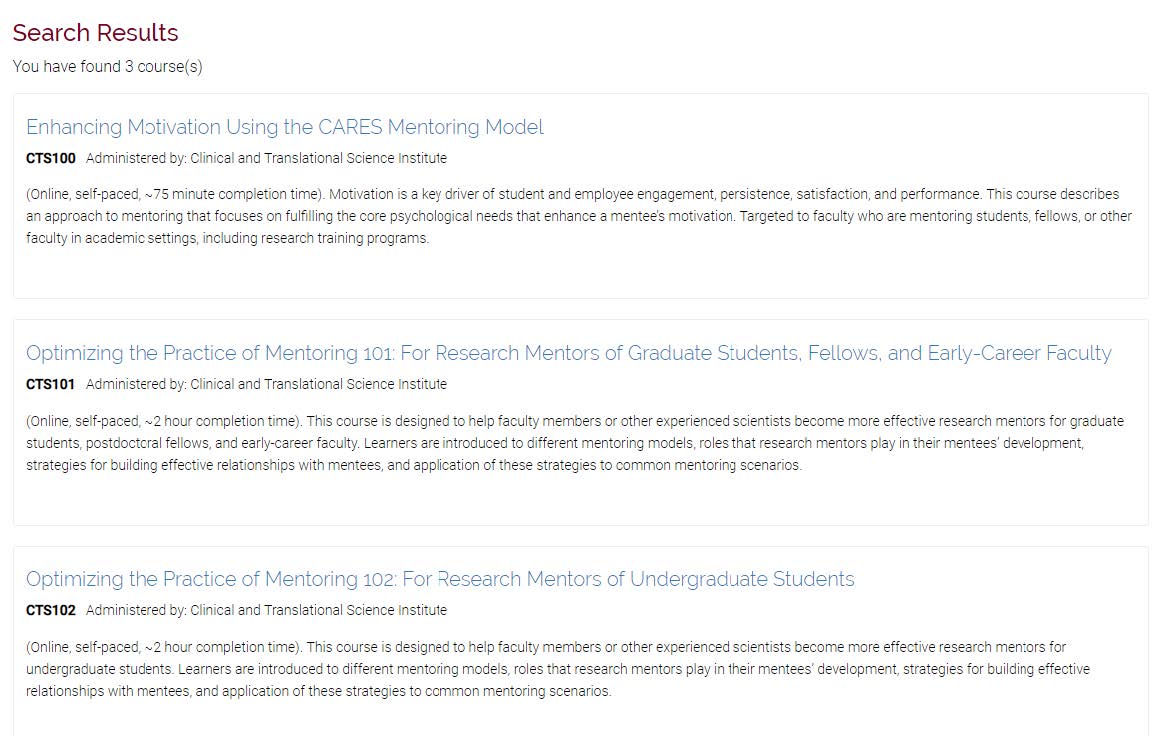
A screenshot showing search results for various courses.

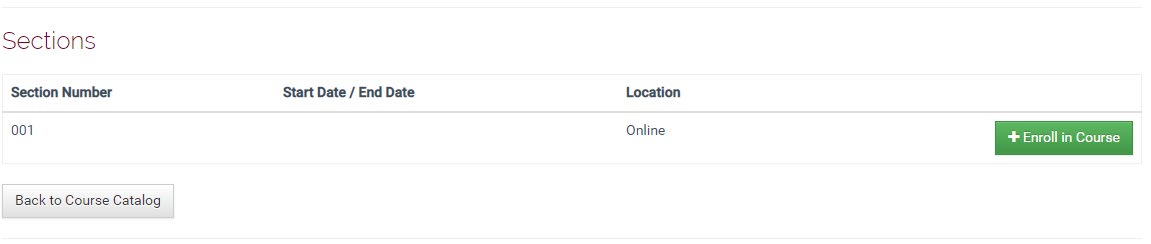
Click "+Enroll in Course."

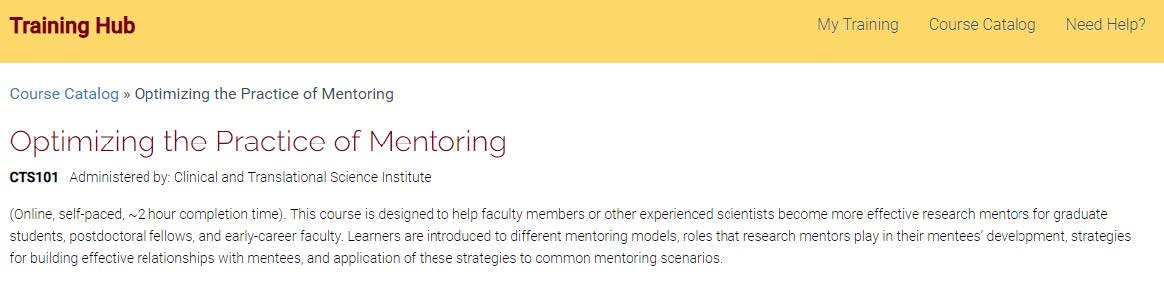
The top portion of the training hub, showing a course named "Optimizing the Practice of Mentoring."
The lower portion of the training hub, showing a section of the course and a green "+Enroll in Course" button on the righthand side.

Click "View Details."

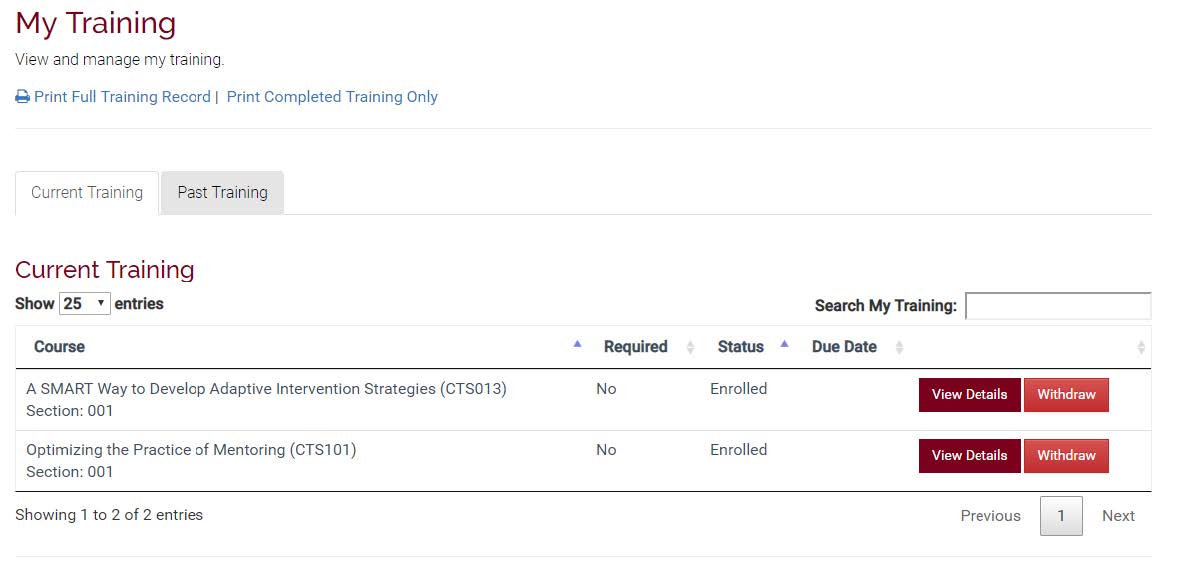
A screenshot of the "My Training" page that shows a course listed under "Current Training." The "View Details" button is on the bottom right.

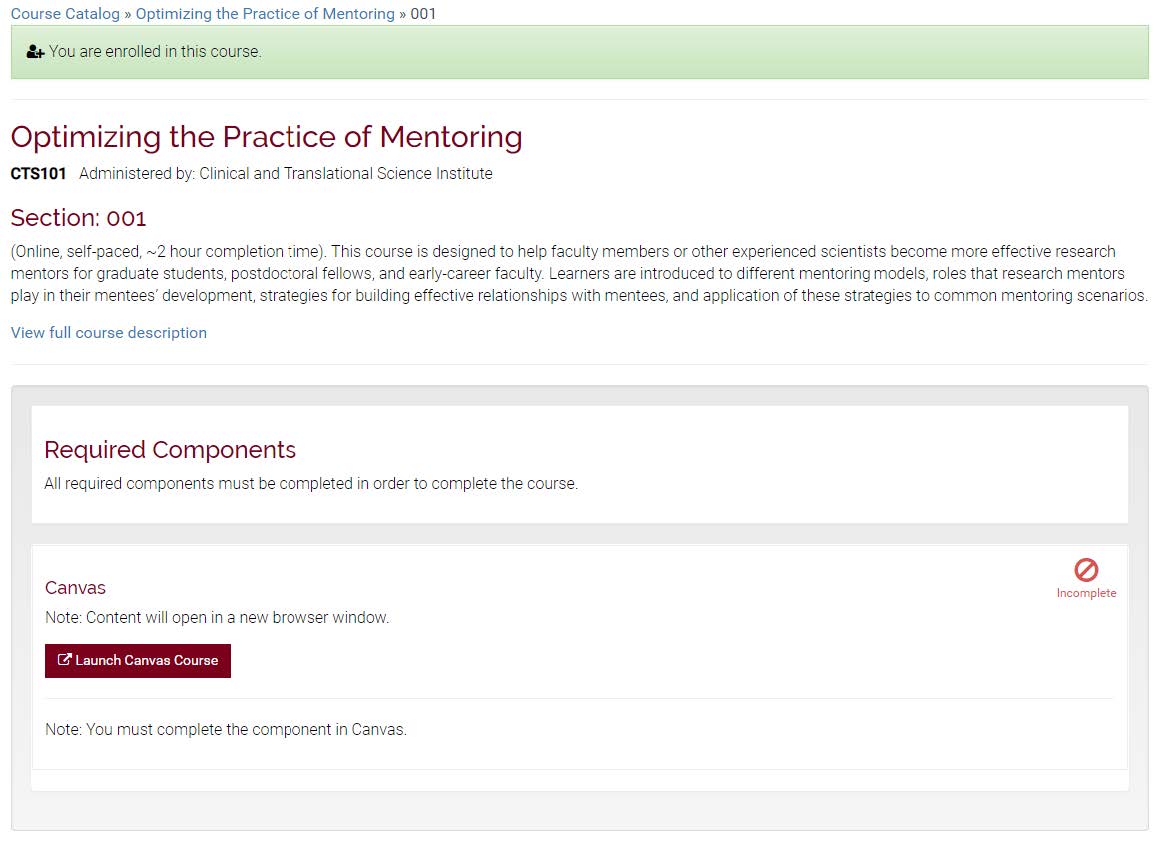
Launch Canvas course.

A screenshot showing the section and a "Launch Canvas Course" located on the bottom left.

If you get an "Access Denied" message while trying to launch a course, contact Technology Help at 612-301-4357 or training@umn.edu

Please state "I have a guest account, and I enrolled in a course in Training Hub, but I can't access the training in Canvas."

Agree to Acceptable Use Policy.
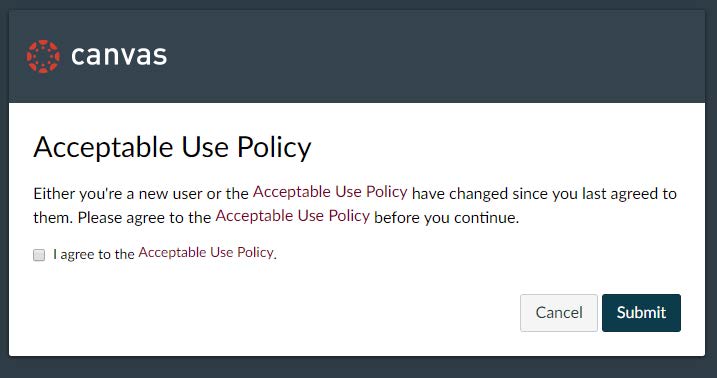
A screenshot of the Acceptable Use Policy and a checkbox stating that you agree.

Click on the Modules tab to begin taking your selected course.
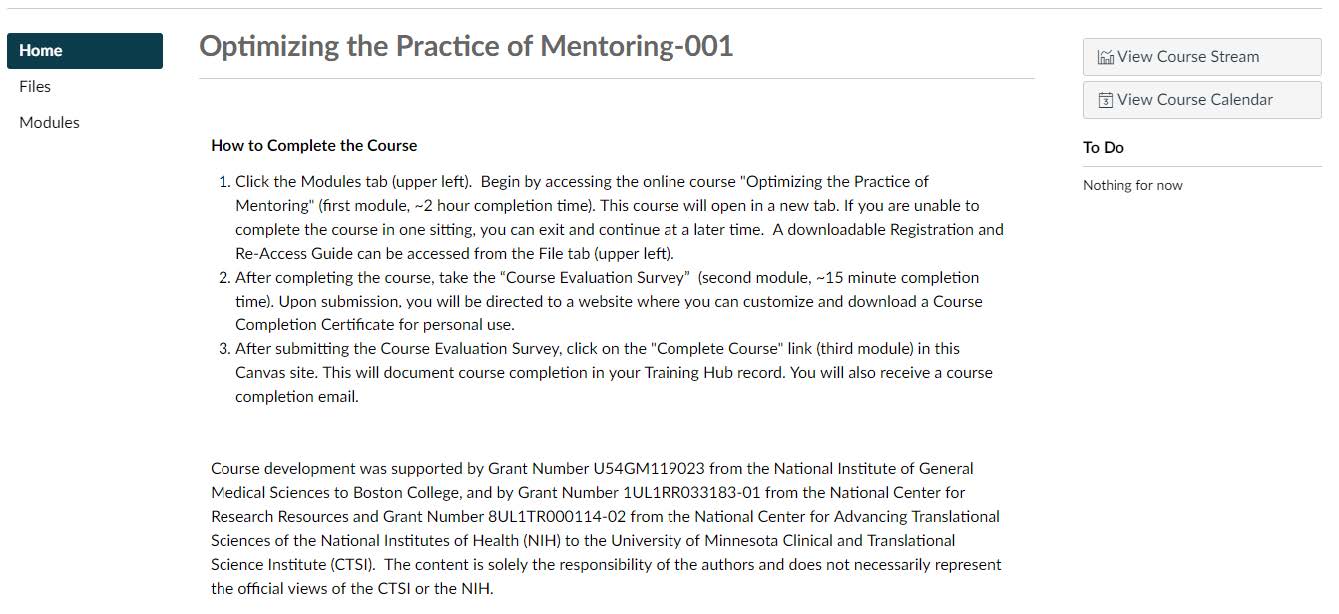
A screenshot of the module, showing introductory language.

Follow prompts throughout the course.
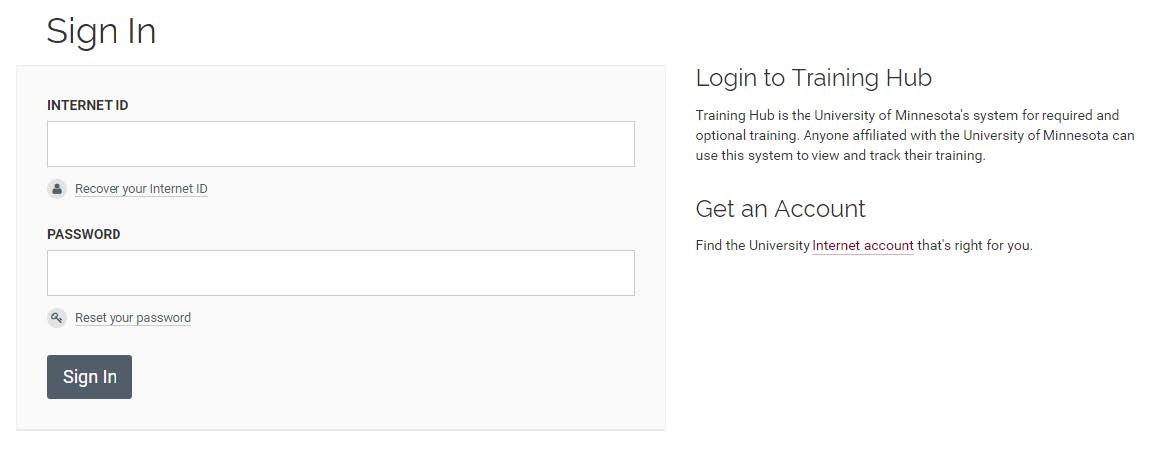
To Re-Access the Course

Visit http://training.umn.edu and sign in using the email address and password you created with your guest account.

A screenshot of the sign in page, showing fields on the lefthand side.

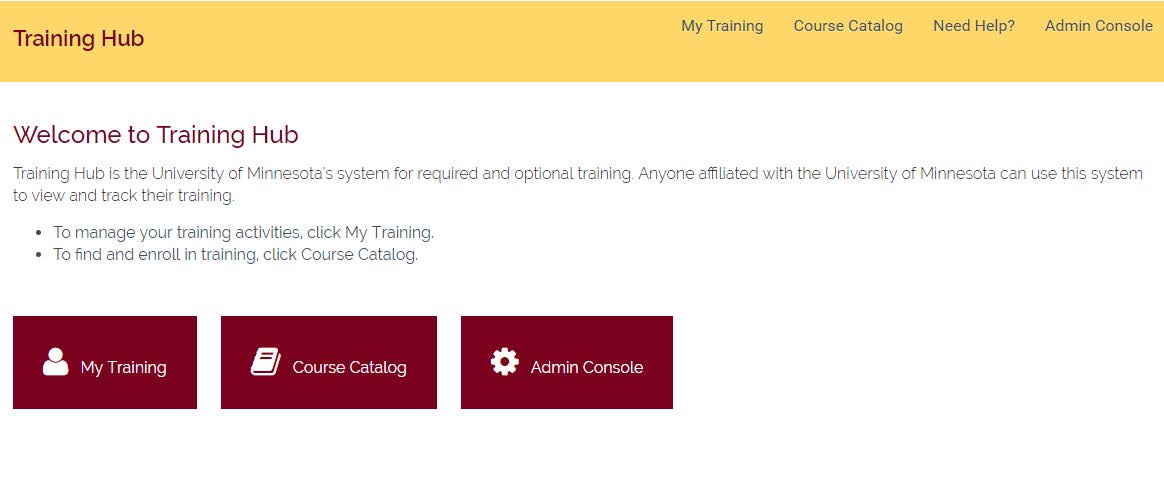
Click "My Training."

A screenshot of the training hub home page showing buttons on the bottom.

Click "View Details" on the course you wish to re-access.

A screenshot of the "My Training" page showing current trainings at the bottom.

Return to Step 8 on the previous tab.