Applicant Instructions

for International Graduate Applicants

  1. To begin the international graduate application process, go to: https://explore.msu.edu/apply/.
  2. First time users: Click on Create an Account
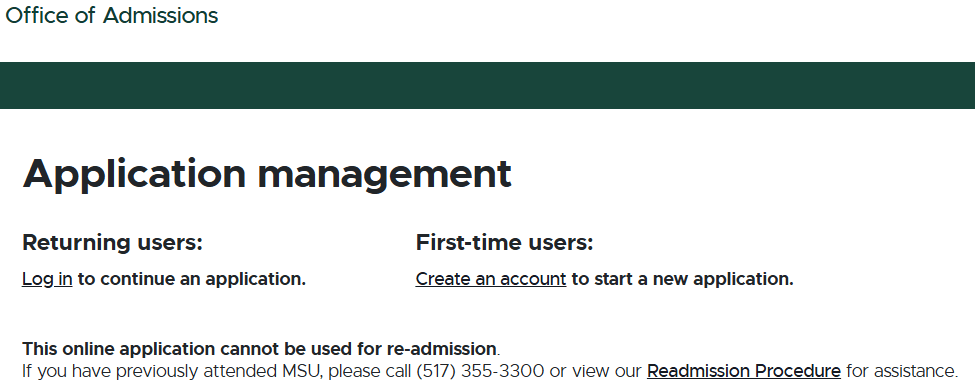
Michigan State University Office of Admissions 'Application management' page. The page provides two options: 'Log in' for returning users to continue an application, and 'Create an account' for first-time users to start a new application. A note at the bottom states that the online application cannot be used for re-admission. It advises former MSU students to call (517) 355-3300 or visit the linked 'Readmission Procedure' page for assistance.
  1. Enter email address, first name, last name, and birthdate. Click, Continue.
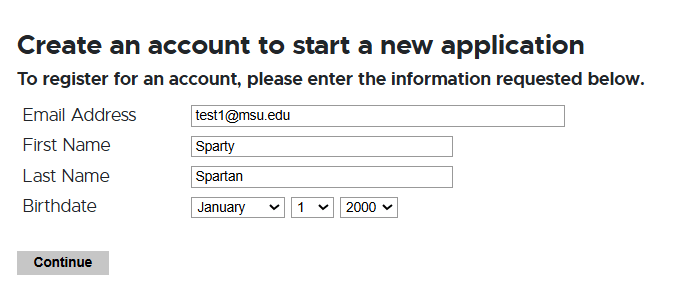
Registration form titled 'Create an account to start a new application' for Michigan State University. Fields include Email Address (filled with test1@msu.edu), First Name (Sparty), Last Name (Spartan), and Birthdate (January 1, 2000). A 'Continue' button appears at the bottom.
  1. A temporary PIN was sent to your email address. Open your personal email address to find an email from Michigan State University, and enter the PIN, and confirm your birthdate.
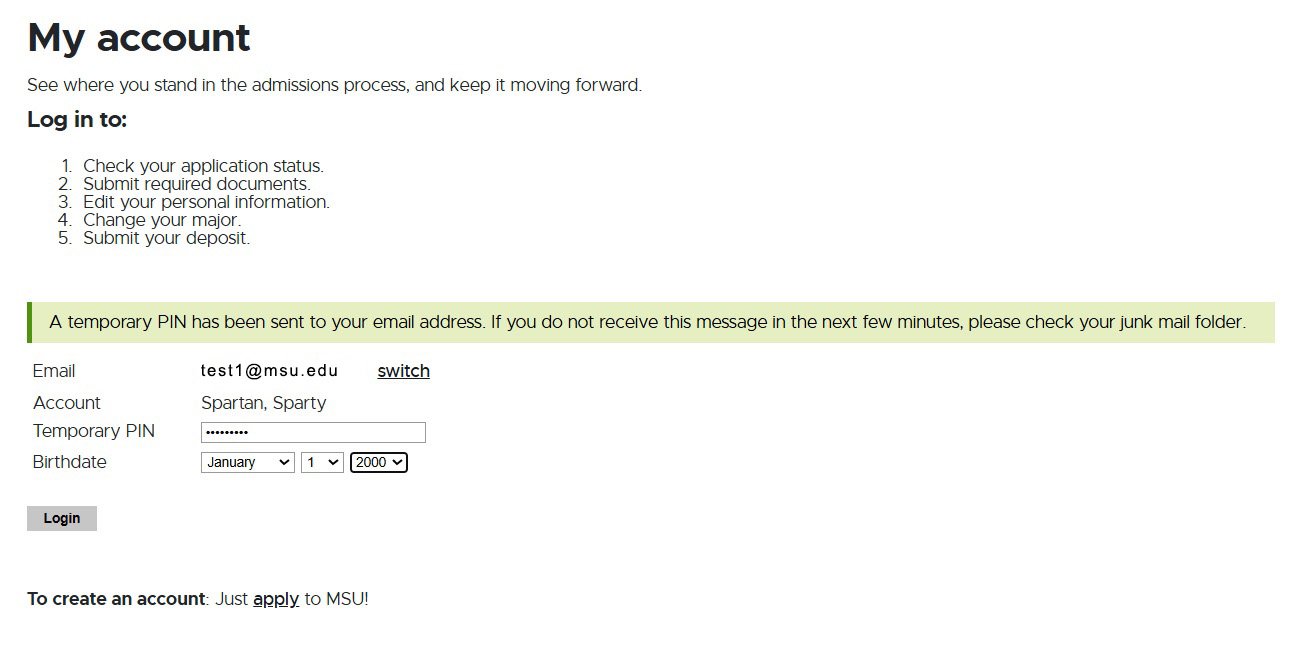
Login page for a university admissions portal titled 'My account.' Instructions are provided to check application status, submit documents, edit personal info, change major, and submit a deposit. A green highlighted message informs the user that a temporary PIN has been sent to their email. Below are fields for email, account name, temporary PIN, and birthdate selection, with a 'Login' button. A link is also provided to create a new account.
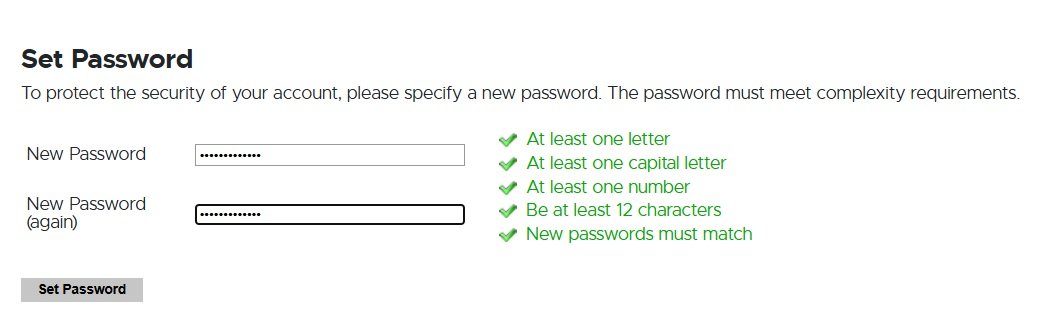
  1. Create your account password.
Password setup page with fields to enter and confirm a new password. A checklist on the right confirms all password requirements have been met: at least one letter, one capital letter, one number, a minimum of 12 characters, and matching passwords. A 'Set Password' button is located below the fields.
  1. Begin completing your application. Click on Start New Application.
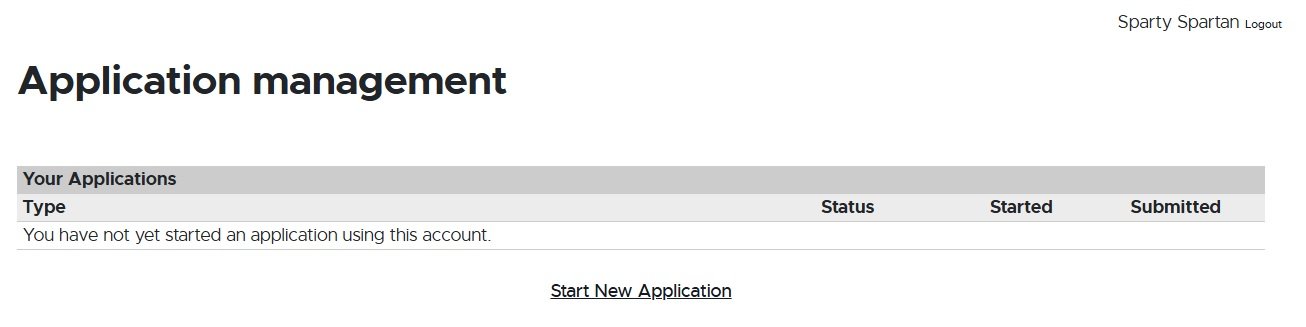
Application management page displaying a table with columns for application type, status, start date, and submission date. The table indicates that no applications have been started using the account. A link labeled 'Start New Application' is provided below the table. The user name 'Sparty Spartan' is shown in the top-right corner with a 'Logout' option.
  1. Choose the type of application (Graduate or Graduate Certificate) then select Create Application.
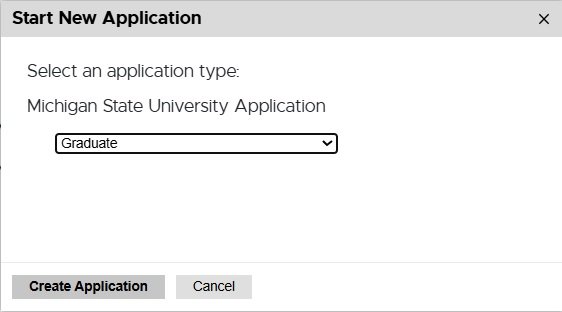
Pop-up window titled 'Start New Application' displaying a form to select an application type. The form is labeled 'Michigan State University Application' with a dropdown menu currently set to 'Graduate.' Below are two buttons: 'Create Application' and 'Cancel.
  1. Next, provide Personal Background information.
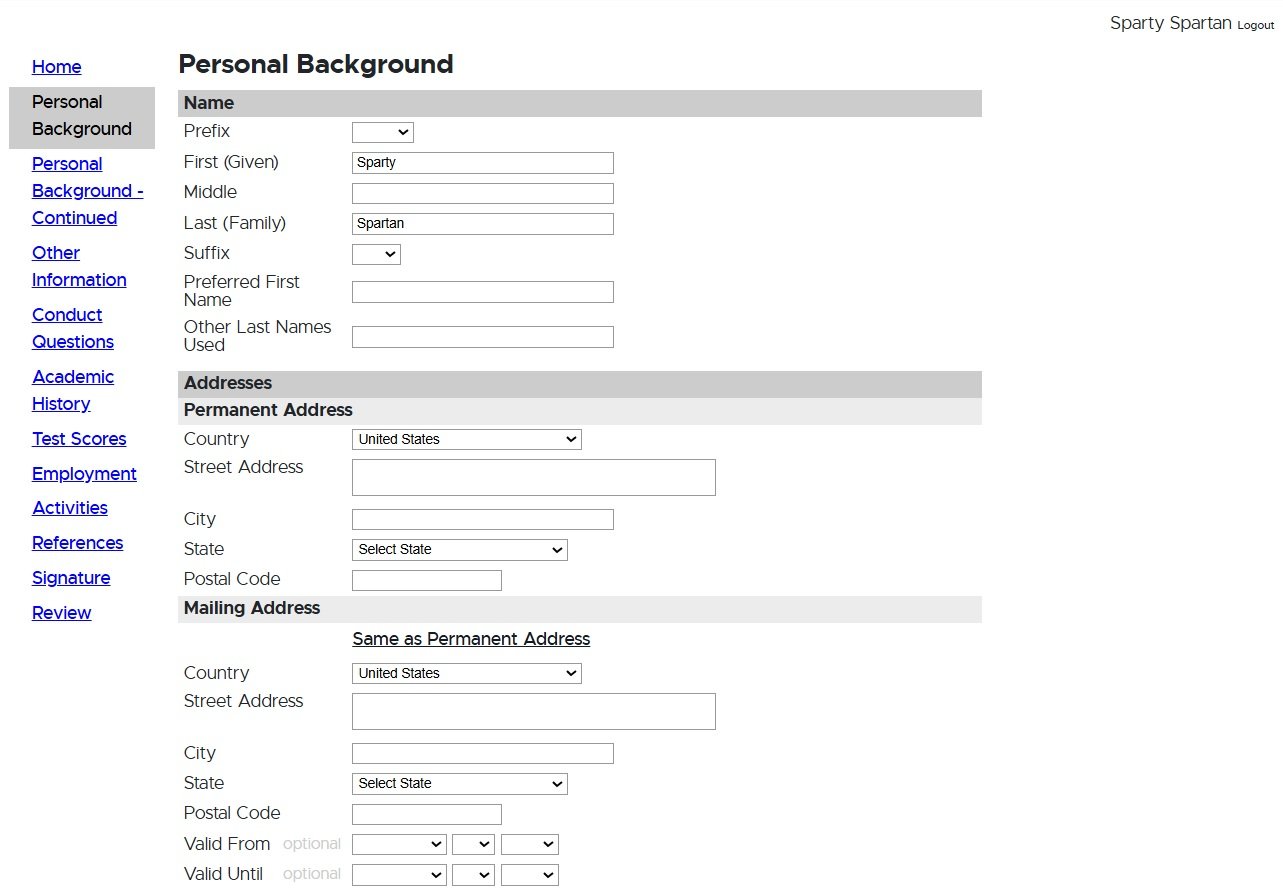
Online form titled 'Personal Background' for a Michigan State University application. Sections include fields for name (prefix, first, middle, last, suffix, preferred name, and other last names), permanent address (country, street address, city, state, postal code), and mailing address (with a checkbox to indicate same as permanent address, plus fields for valid from and until dates). A sidebar on the left lists form sections including Personal Background, Other Information, Conduct Questions, Academic History, Test Scores, Employment, Activities, References, Signature, and Review. User is logged in as 'Sparty Spartan.
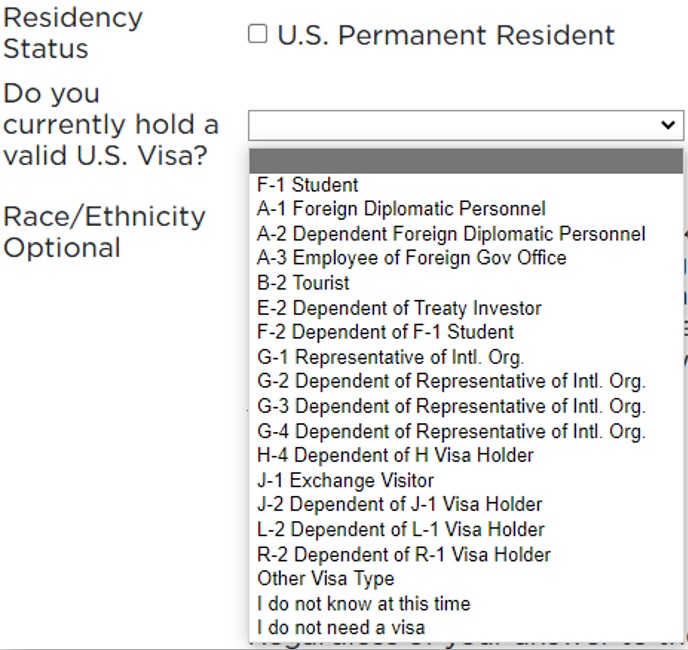
  1. Choose your Primary Citizenship, country, and Visa information. Collecting Visa information aids the Office of Admissions and Office for International Students and Scholars with the immigration process and with any required documents they need. This needs to be completed even in situations where an international student is taking online courses. Online students can select “I do not need a visa.” Please note that Race/Ethnicity are optional questions.
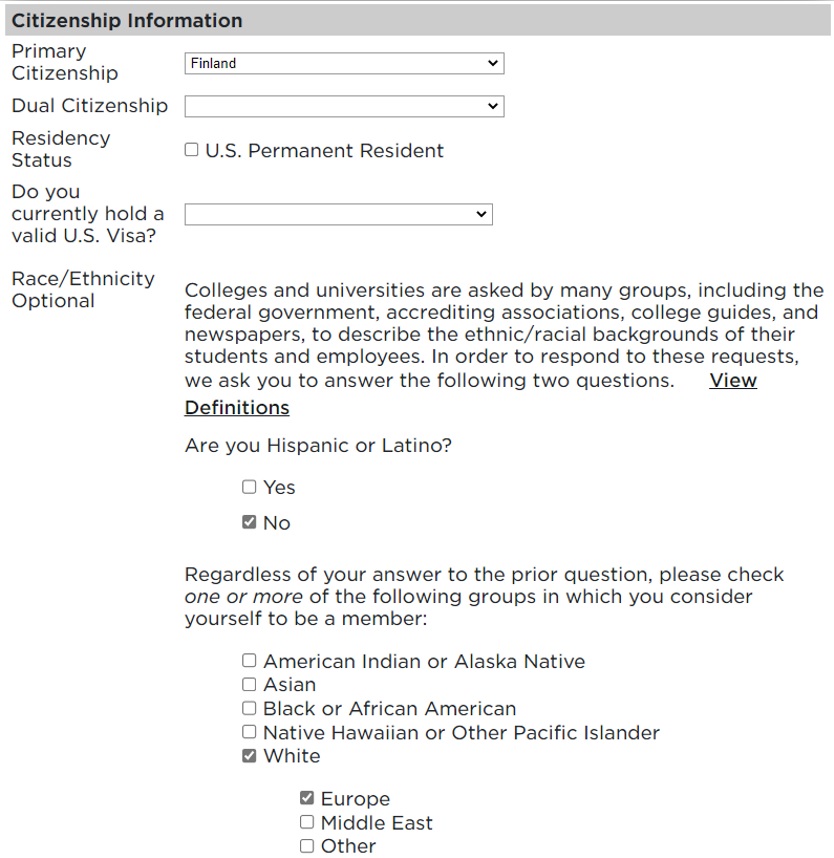
Citizenship Information section of a university application form. Primary Citizenship is set to Finland, with optional fields for Dual Citizenship, Residency Status (checkbox for U.S. Permanent Resident), and current U.S. Visa status (dropdown menu). The Race/Ethnicity section is optional and includes questions about Hispanic or Latino identity (No is selected), and racial background. The 'White' checkbox is selected, with a sub-option for 'Europe' also selected. Other race options include American Indian or Alaska Native, Asian, Black or African American, Native Hawaiian or Other Pacific Islander, Middle East, and Other. A link to 'View Definitions' is provided.
Close-up of a dropdown menu under the question 'Do you currently hold a valid U.S. Visa?' on a university application form. The menu lists various visa types including: F-1 Student, A-1 Foreign Diplomatic Personnel, A-2 Dependent Foreign Diplomatic Personnel, A-3 Employee of Foreign Government Office, B-2 Tourist, E-2 Dependent of Treaty Investor, F-2 Dependent of F-1 Student, G-1 through G-4 Representative and Dependent of International Organization, H-4 Dependent of H Visa Holder, J-1 Exchange Visitor, J-2 Dependent of J-1 Visa Holder, L-2 Dependent of L-1 Visa Holder, R-2 Dependent of R-1 Visa Holder, Other Visa Type, I do not know at this time, and I do not need a visa.
  1. Once all information is completed, select Continue.
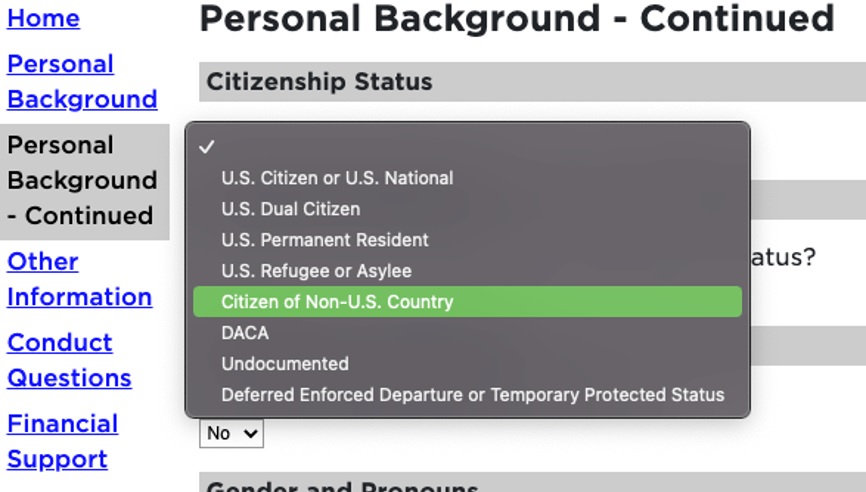
  2. Complete additional information on the Personal Background – Continued section.
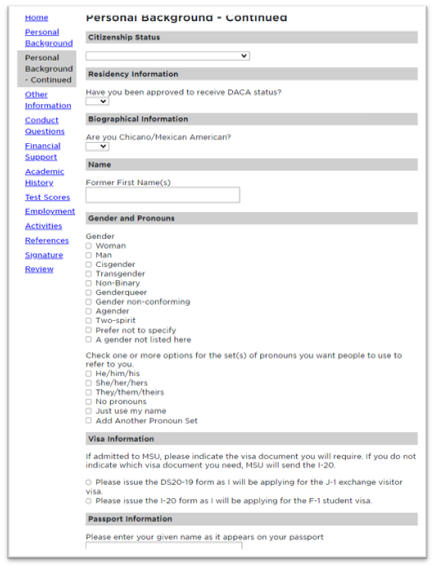
Personal Background - Continued  A screenshot of the Personal Background - Continued tab of the application, showing citizenship status, gender and pronouns, visa information, and more.
Dropdown menu under 'Citizenship Status' on a university application form. The menu is expanded and highlights the selected option 'Citizen of Non-U.S. Country' in green. Other options in the list include: U.S. Citizen or U.S. National, U.S. Dual Citizen, U.S. Permanent Resident, U.S. Refugee or Asylee, DACA, Undocumented, and Deferred Enforced Departure or Temporary Protected Status.
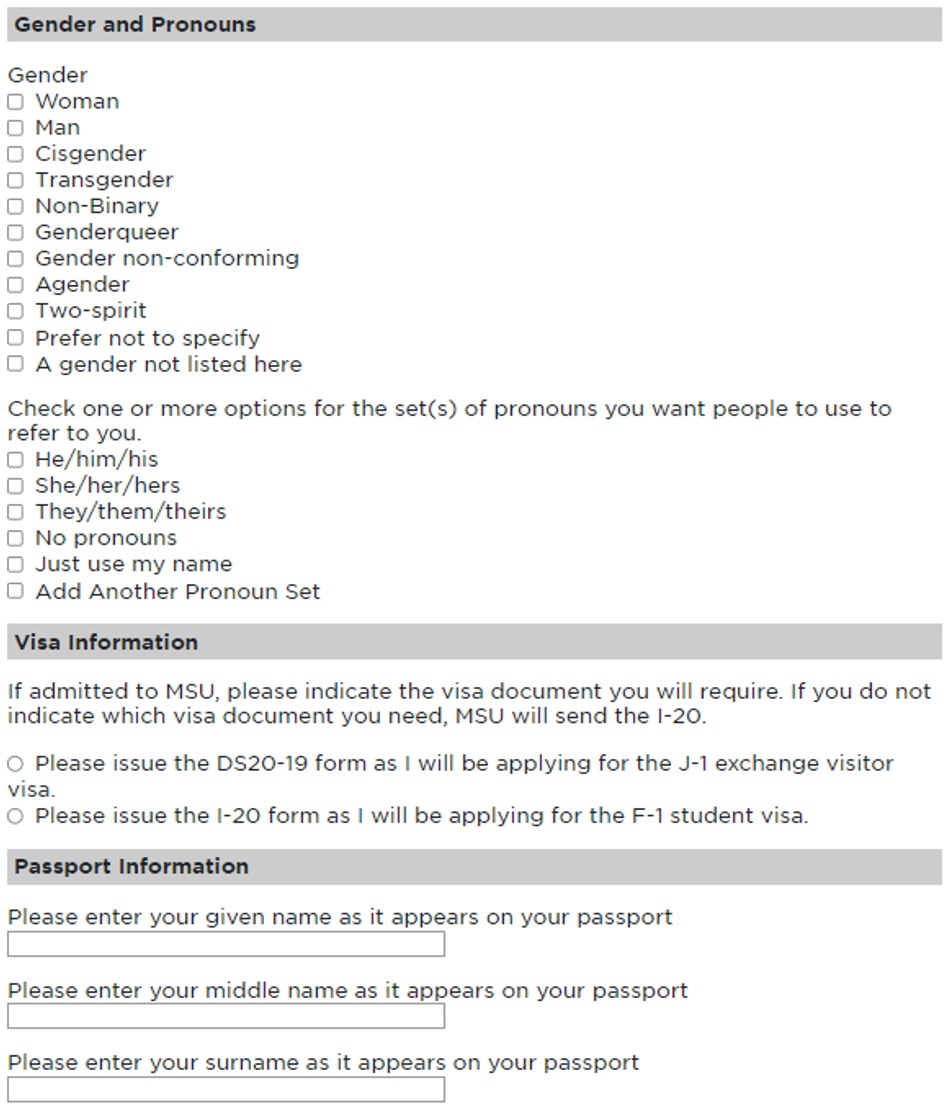
University application form sections for Gender and Pronouns, Visa Information, and Passport Information. The Gender and Pronouns section includes multiple checkboxes for gender identities (e.g., Woman, Man, Transgender, Non-Binary, Two-spirit, Prefer not to specify) and pronoun preferences (e.g., He/him/his, She/her/hers, They/them/theirs, No pronouns, Just use my name). The Visa Information section asks applicants to choose between the DS2019 form for J-1 exchange visitor visa or the I-20 form for F-1 student visa. The Passport Information section includes three text fields to enter the given name, middle name, and surname as they appear on the applicant's passport.
  1. Once all information is completed, select Continue.
  2. Other Information: First select either the First Semester to Enroll or the Major Preference. These fields are tied together, and changes to the semester will affect what majors are displayed (and vice versa).

    Depending on your major selection additional questions will be included, excluded, or modified (including topics like financial aid, communications, and more).
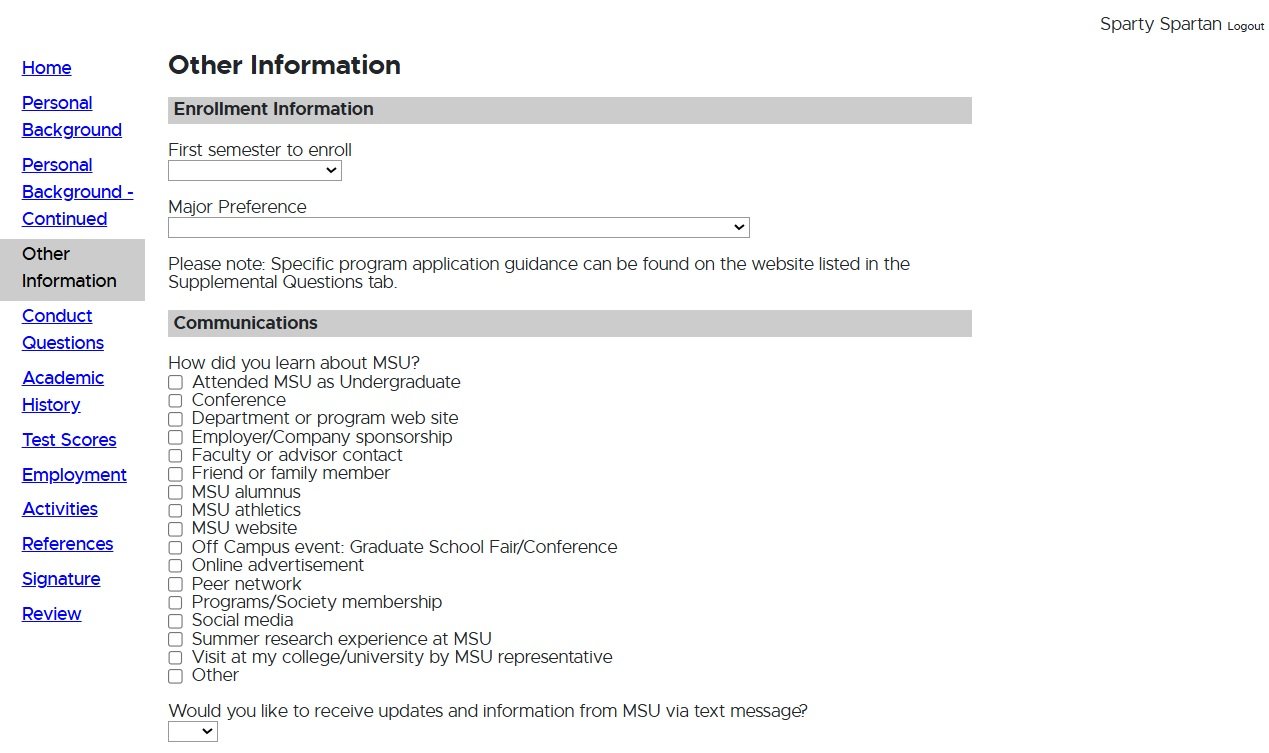
Application form section titled 'Other Information' for Michigan State University. Under 'Enrollment Information,' fields include 'First semester to enroll' (dropdown menu) and 'Major Preference' (dropdown menu). A note below mentions that specific program application guidance can be found on the Supplemental Questions tab. The 'Communications' section asks, 'How did you learn about MSU?' with multiple checkboxes including options like MSU website, social media, conference, employer sponsorship, family member, and more. A final dropdown asks whether the applicant would like to receive updates from MSU via text message.

After advancing from the Other Information tab, the remaining tabs will be modified based on the unique requirements of your chosen program. A Supplemental Questions tab will contain a link to the programs website that displays additional application requirements.

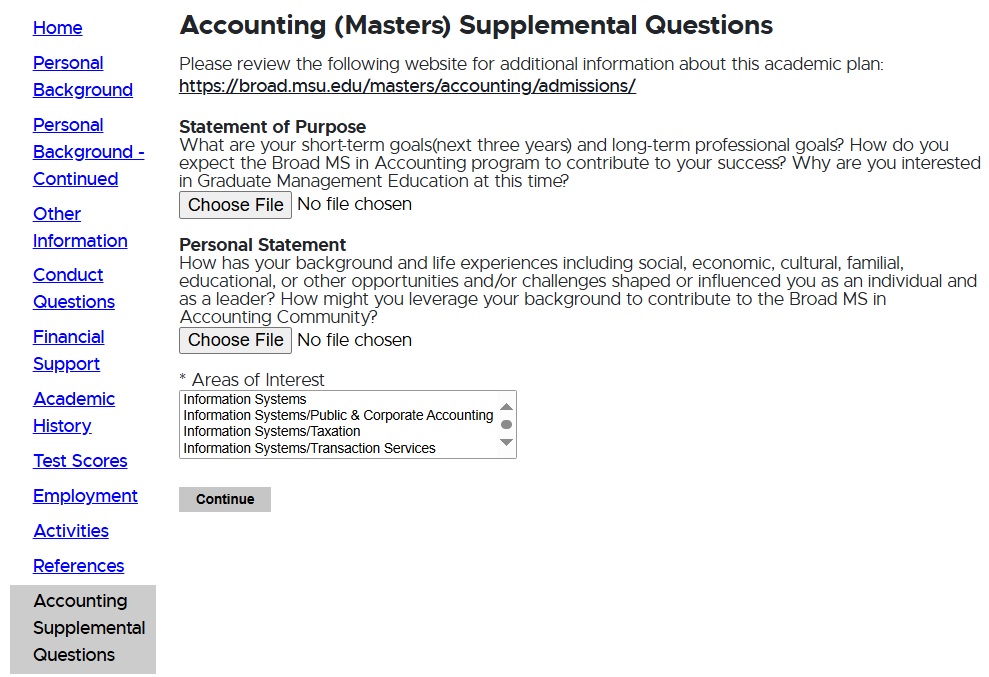
Supplemental Questions section for the Accounting (Masters) application at Michigan State University. It includes a link to additional information about the program. Two prompts are shown: 'Statement of Purpose' and 'Personal Statement,' each with a file upload button labeled 'Choose File.' The section also includes a required field for selecting 'Areas of Interest' from a dropdown list, with options such as Information Systems, Public & Corporate Accounting, Taxation, and Transaction Services. A 'Continue' button is at the bottom. A navigation menu is visible on the left side of the screen.
  1. COVID-19: If you would like MSU program staff to know information regarding hardships or your experience during the COVID-19 outbreak.
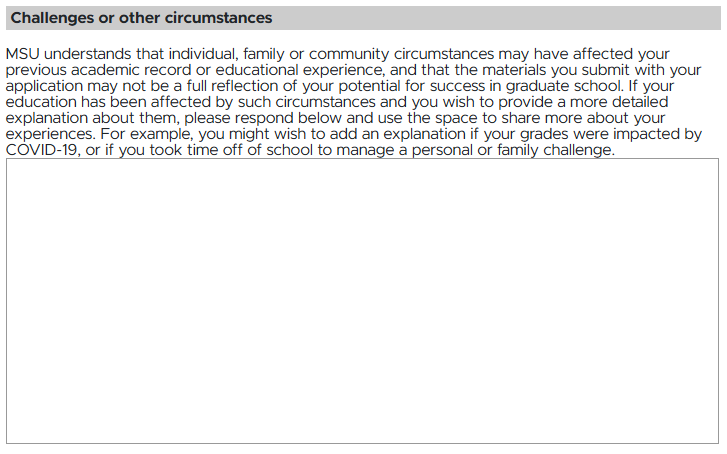
Application form section titled 'COVID-19' with a message explaining that Michigan State University understands that personal, family, or community circumstances related to COVID-19 may have affected an applicant's academic performance or educational experience. Applicants are invited to use the provided text box to explain any such impact, such as grade disruptions or time off from school due to personal or family challenges.
  1. Other: This section contains additional information about the applicant’s background, including whether the applicant is a first-generation college student, previous applications, MSU contacts, employment and employment agreement status, and foreign language proficiency. The first-generation college student question is mandatory, and the applicant must answer either “Yes,” “No,” or “Prefer not to answer.”
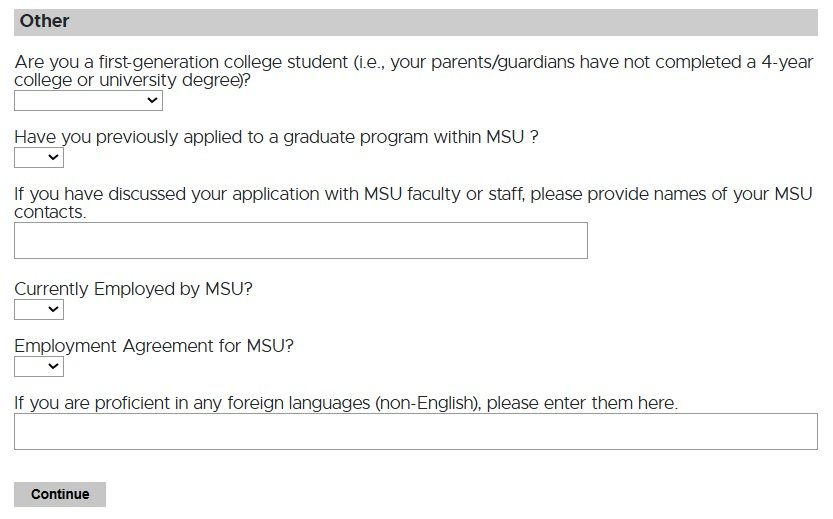
Application form section titled 'Other' with several questions and input fields. Questions include whether the applicant is a first-generation college student, has previously applied to a graduate program at MSU, and if they are currently employed by MSU or have an employment agreement with MSU. There is a text box to list names of MSU faculty or staff the applicant has discussed their application with, and another text box for listing any foreign languages (non-English) in which the applicant is proficient. A 'Continue' button is at the bottom.
  1. Once all information is completed, select Continue.
  2. Complete the required Conduct Questions.
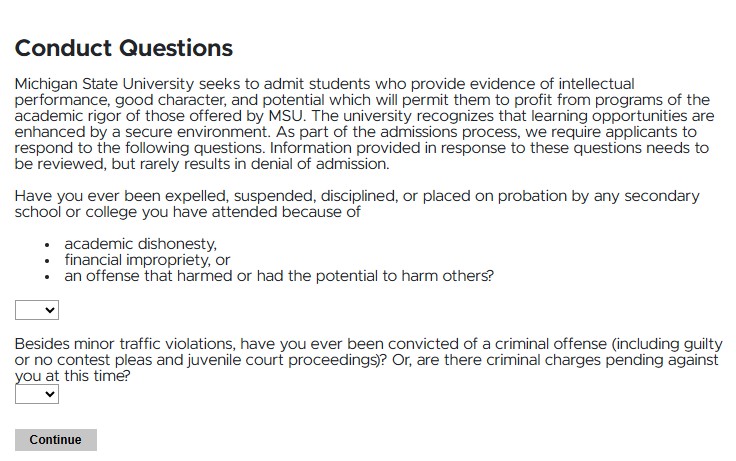
Application form section titled 'Conduct Questions' from Michigan State University. The section begins with a statement about MSU's commitment to admitting students who demonstrate intellectual ability, good character, and potential. It includes two dropdown questions: one asking if the applicant has ever been expelled, suspended, disciplined, or placed on probation due to academic dishonesty, financial impropriety, or harmful offenses; and another asking if the applicant has ever been convicted of a criminal offense or has criminal charges pending. A 'Continue' button appears at the bottom.
  1. Once all information is completed, select Continue.
  2. Financial Support Requirements Tab
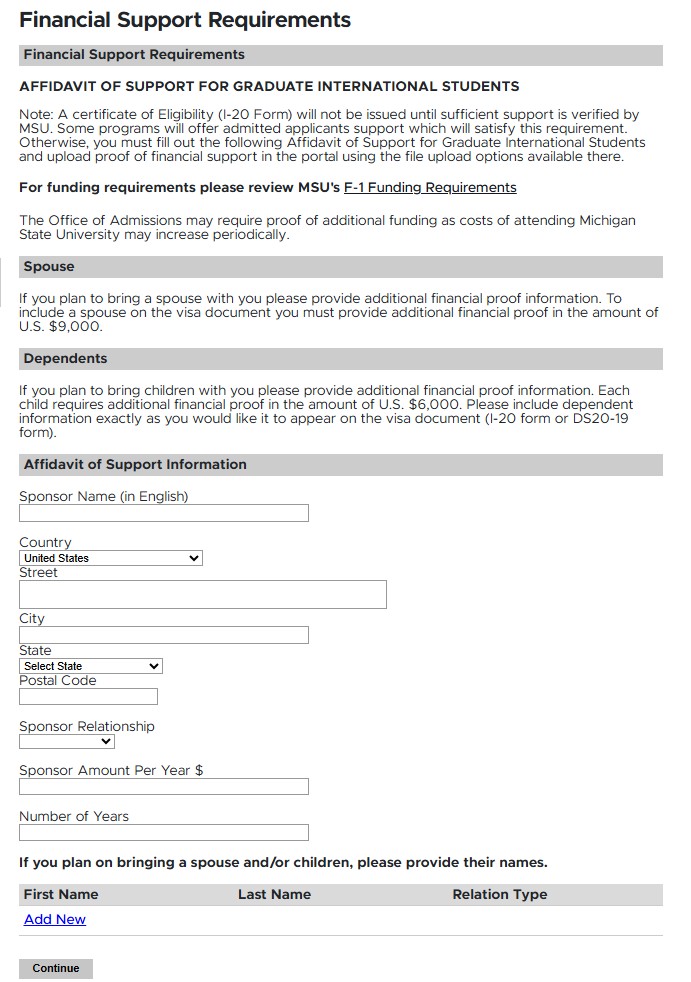
University application form section titled 'Financial Support Requirements' for graduate international students. It includes an 'Affidavit of Support' notice stating that a Certificate of Eligibility (I-20 Form) will not be issued until sufficient financial support is verified. A link is provided to MSU’s F-1 Funding Requirements. Additional financial proof is required for applicants bringing a spouse ($8,000) or dependents ($5,000 per child). At the bottom, there is a field labeled 'Sponsor Name (in English)' for entering the name of the financial sponsor. A navigation menu appears on the left.
  1. Include your sponsor information under the Affidavit of Support section and click on Add New if you plan to include a spouse and/or children.
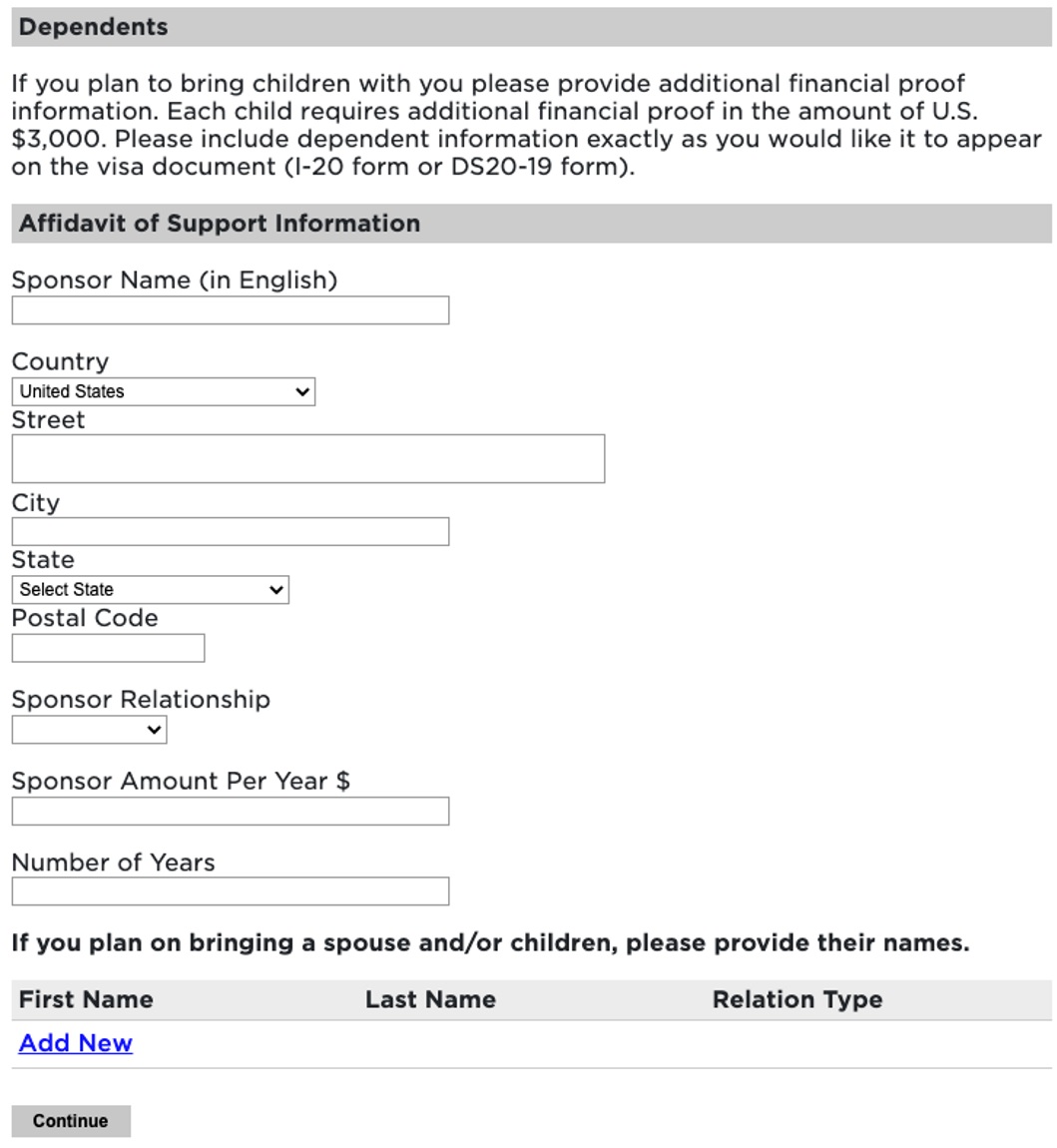
University application form section under 'Dependents' and 'Affidavit of Support Information.' It requests financial details for applicants bringing children, requiring $3,000 per child. Fields include Sponsor Name, Country (dropdown), Street, City, State (dropdown), Postal Code, Sponsor Relationship (dropdown), Sponsor Amount Per Year, and Number of Years. A table is shown to add names of dependents with columns for First Name, Last Name, and Relation Type. A link labeled 'Add New' and a 'Continue' button appear at the bottom.
  1. Once all information is completed, select Continue.
  2. Include all Academic History information. To begin: click on Add Institution.
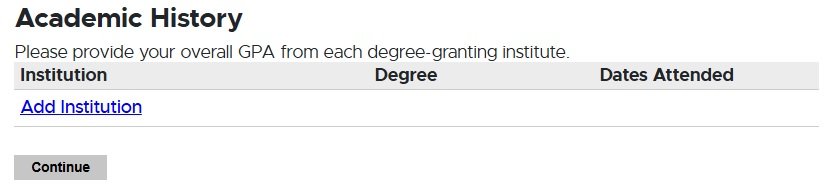
Application form section titled 'Academic History' requesting the applicant’s overall GPA from each degree-granting institution. A table with columns for Institution, Degree, and Dates Attended is displayed. No institutions are listed yet. A link labeled 'Add Institution' is available, along with a 'Continue' button at the bottom.
  1. Next, begin typing in the name of the previously attended university, and it will populate all the information. Select your institution. Official documentation will need to be submitted for each institution listed here.
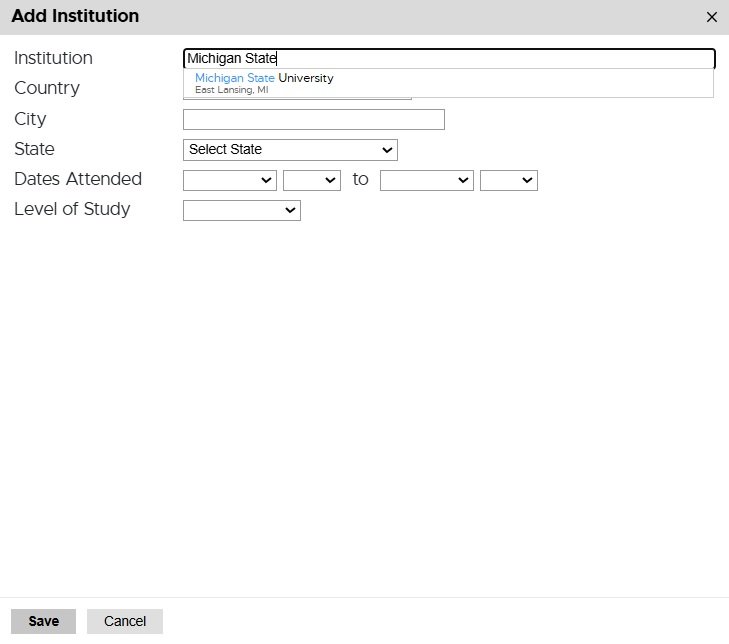
Pop-up form titled 'Add Institution' for entering academic history. Fields include Institution (with 'Michigan State' being typed and a suggestion for 'Michigan State University, East Lansing, MI'), Country, City, State (dropdown), Dates Attended (with from and to dropdowns), and Level of Study (dropdown). At the bottom are 'Save' and 'Cancel' buttons.
  1. Add the Dates Attended and Level of Study, Degree, Major, etc. Then click Save.
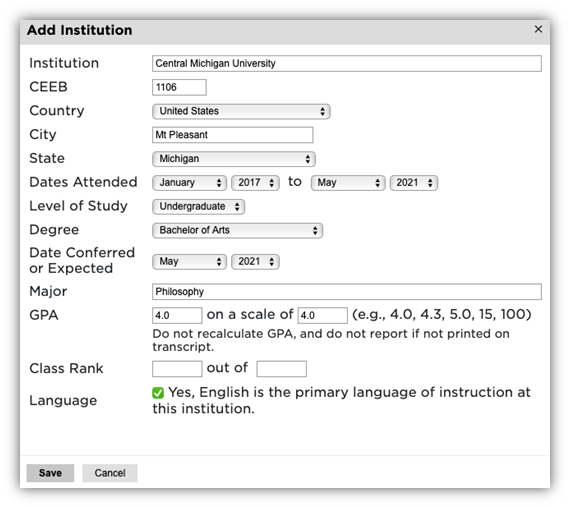
“Add Institution” form filled: Central Michigan University (CEEB 1106), Mt Pleasant, Michigan, USA; attended Jan 2017–May 2021; Undergraduate BA, Philosophy; degree conferred May 2021; GPA 4.0/4.0; English primary; Save/Cancel buttons.
  1. Test Scores: To add your test scores, begin by selecting Add Test. To determine test score requirements, please refer to the program’s website.
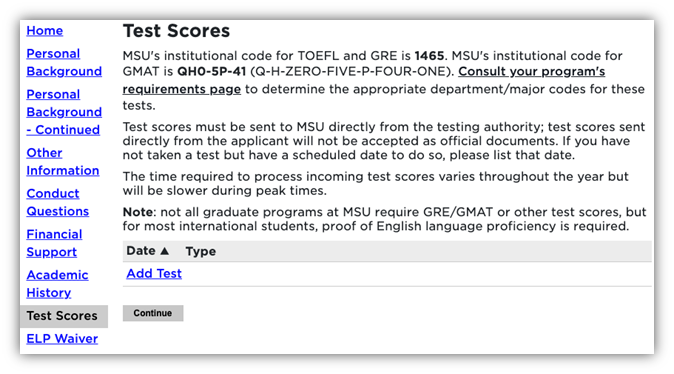
MSU application “Test Scores” page; codes: TOEFL/GRE 1465, GMAT QH0-5P-41 (Q-H-ZERO-FIVE-P-FOUR-ONE); instructions to send official scores; empty list with Add Test link, sidebar with Test Scores selected, Continue button, ELP Waiver link.
  1. Once all information is completed, select Save.
  2. Next, choose the type of test that you’d like to add. Example below: GRE
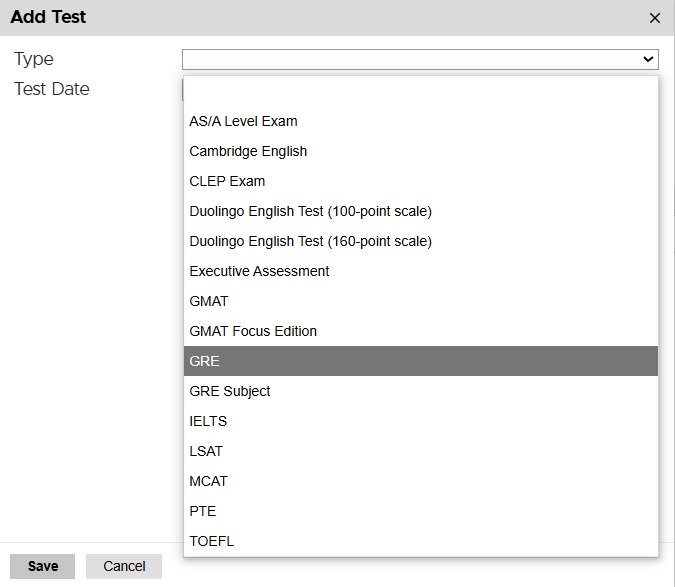
Pop-up form titled 'Add Test' for entering standardized test information in a university application. Fields include a dropdown menu labeled 'Type' with options such as GRE, GMAT, TOEFL, IELTS, LSAT, MCAT, Duolingo English Test, Cambridge English, and others. Below is a field for entering the 'Test Date.' Buttons for 'Save' and 'Cancel' appear at the bottom.
  1. Enter your test results.
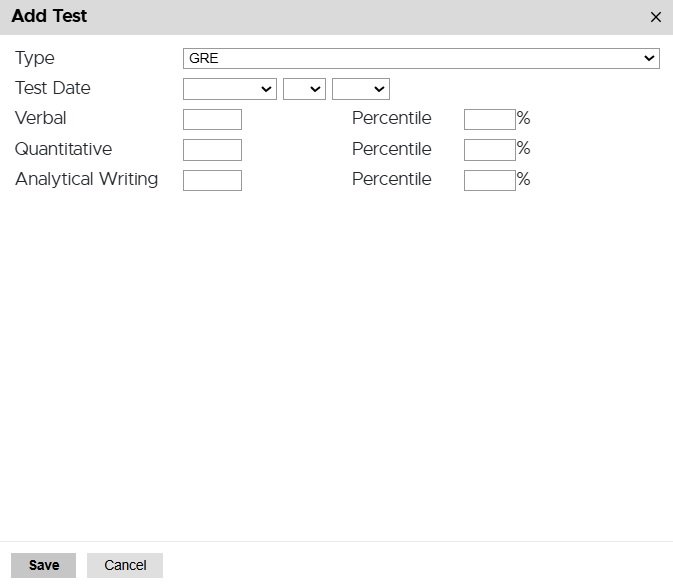
Pop-up form titled 'Add Test' for entering GRE test results. Fields include test date (with dropdowns for month, day, and year), and sections to input scores and percentile rankings for Verbal, Quantitative, and Analytical Writing. Each section has two fields: one for the score and one for the percentile (with '%' symbol). Buttons labeled 'Save' and 'Cancel' are located at the bottom of the form.
  1. Once all information is completed, select Save.
  2. Employment: To begin adding your employment history, select Add Employer.
    Note: this tab may or may not appear depending on the requirements of your selected program.
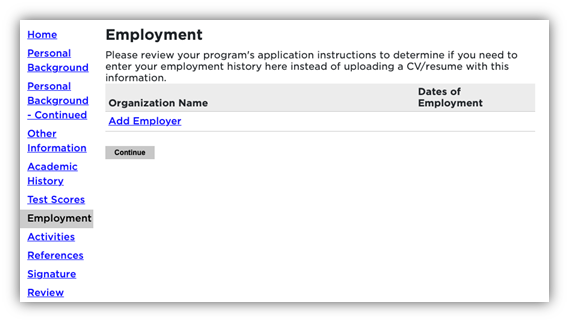
MSU application “Employment” page; instructions shown; empty table with columns “Organization Name” and “Dates of Employment”; link Add Employer; sidebar with Employment highlighted; Continue button.
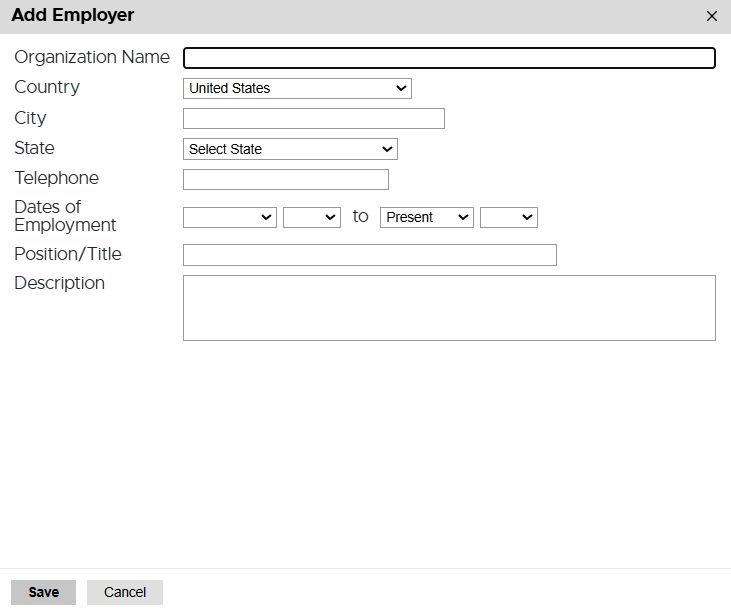
Pop-up form titled 'Add Employer' for entering employment history in a university application. Fields include Organization Name, Country (set to United States), City, State (dropdown), Telephone, Dates of Employment (with start and end date dropdowns, defaulting to 'Present'), Position/Title, and Description. At the bottom are 'Save' and 'Cancel' buttons.
  1. Once all employer information is added, click Save.
  2. Continue adding employment information and click Continue to complete employment history.
  3. Activities: If your program requires your activities or experiences prior to applying to graduate school, please include that information by selecting Add Activity. After submitting your application, you will be able to upload your Résumé/Curriculum Vitae in the Admissions portal.

    Note: this tab may or may not appear depending on the requirements of your selected program.
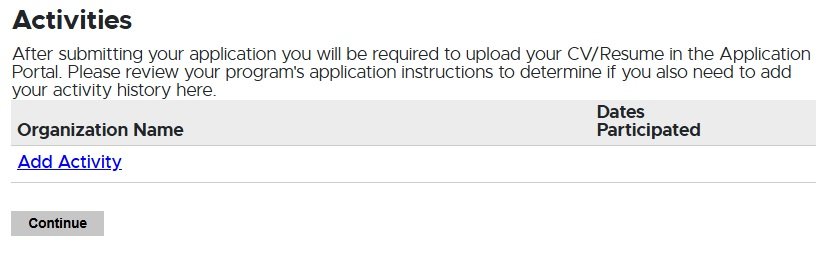
Application form section titled 'Activities' prompting the applicant to list extracurricular or relevant activity history. A message states that a CV or resume must be uploaded after submission and advises applicants to check program-specific requirements. The section contains a table with columns for 'Organization Name' and 'Dates Participated,' which is currently empty. A link labeled 'Add Activity' and a 'Continue' button are located below the table.
  1. Complete the information to add an activity.
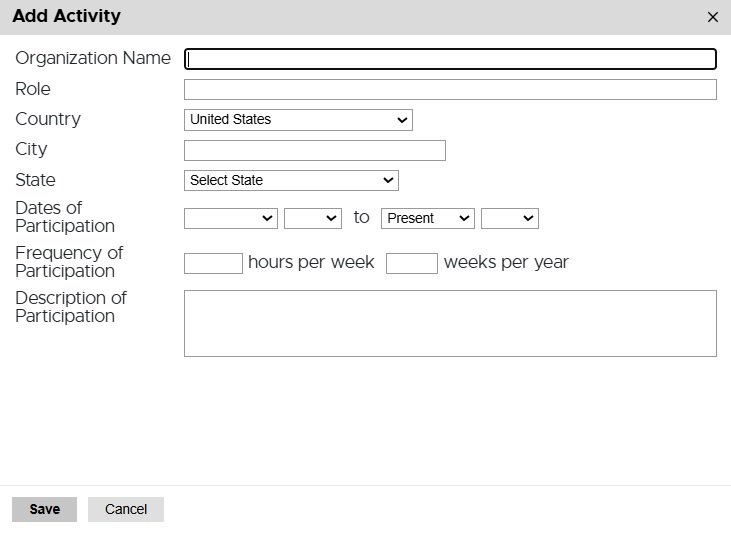
Pop-up form titled 'Add Activity' for entering extracurricular or relevant experience in a university application. Fields include Organization Name, Role, Country (defaulted to United States), City, State (dropdown), Dates of Participation (with dropdowns for start and end dates, defaulted to 'Present'), Frequency of Participation (hours per week and weeks per year), and a large text box for Description of Participation. 'Save' and 'Cancel' buttons are located at the bottom of the form.
  1. Once all activities information is added, click Save.
  2. References: To obtain letters of recommendation, please add your recommender’s information by selecting Add Recommender.
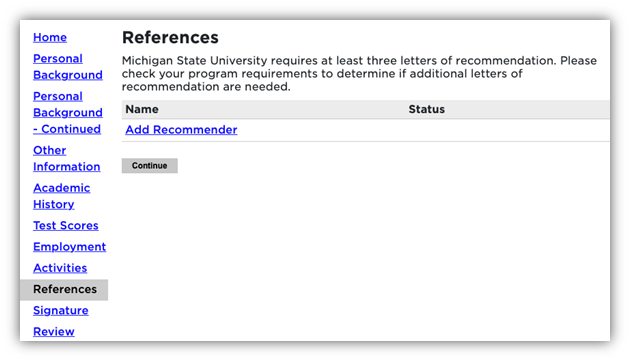
MSU application “References” page with empty Name/Status table, Add Recommender link, Continue button, and sidebar with References selected.
  1. Include all contact information for your recommender. MSU graduate programs typically require three letters of recommendation. Make sure to include all recommenders requested by your program. If you do not provide all required recommenders, you will not be able to submit the application. Example below: 
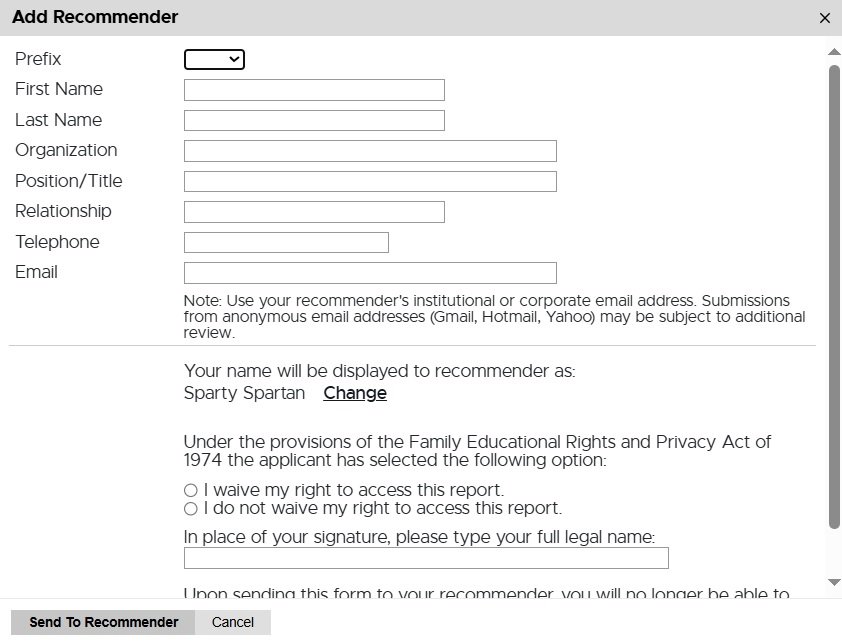
Pop-up form titled 'Add Recommender' for submitting reference information in a university application. Fields include Prefix, First Name, Last Name, Organization, Position/Title, Relationship, Telephone, and Email. A note advises using an institutional or corporate email address instead of anonymous services like Gmail or Yahoo. The recommender will see the applicant's name displayed as 'Sparty Spartan' with an option to change it. Below is a FERPA (Family Educational Rights and Privacy Act) statement asking the applicant to select whether they waive their right to access the report. A field is provided to type the applicant’s full legal name in place of a signature. Buttons labeled 'Send To Recommender' and 'Cancel' are at the bottom.
  1. Once you’ve completed the contact information, selected the waiver decision, and typed your full name as a signature, select Send to Recommender. This will generate an email to your recommender with details for their letter submission. They will have to click on a link to complete the recommendation form.
  2. If your major requires supplemental questions, a new section will appear in the lefthand navigation bar. Complete these questions as required for your major, and then click Continue.
  3. Provide your signature electronically by typing in your full legal name, then select Confirm.
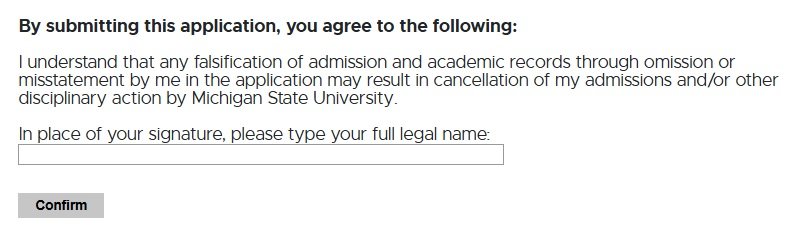
Final section of a university application form titled 'By submitting this application, you agree to the following.' The text states that any falsification of admission or academic records may result in cancellation of admission or disciplinary action by Michigan State University. A field is provided for the applicant to type their full legal name in place of a signature. Below is a 'Confirm' button to submit the application.
  1. The Review section will provide you with a list of potential errors if a section has not been completed. Please make sure to return to those sections and make the appropriate corrections before finalizing the application and submitting your payment.
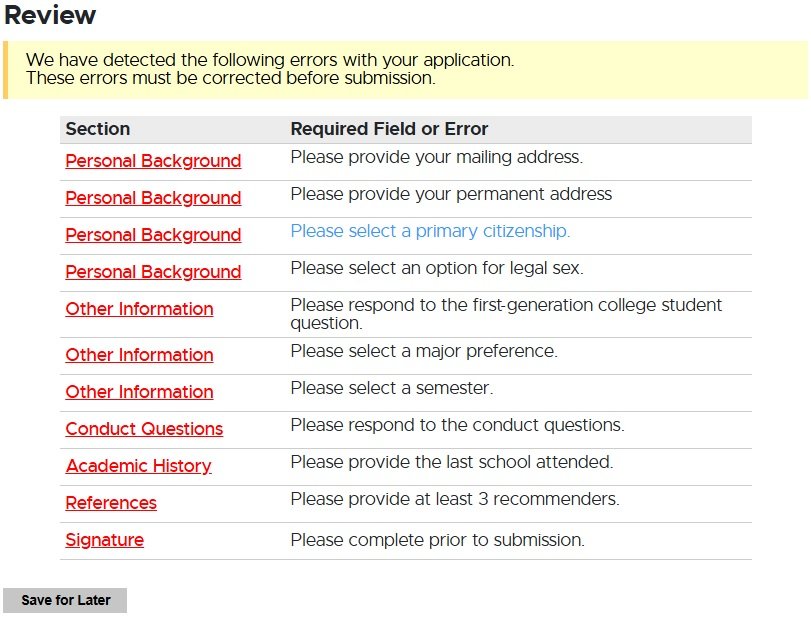
Application review page displaying a warning in a yellow box that errors have been detected and must be corrected before submission. A table lists the problematic sections and corresponding error messages. Issues include missing mailing and permanent addresses, missing primary citizenship and legal sex, unanswered first-generation student and conduct questions, unselected major and semester, missing last school attended, fewer than three recommenders, and an incomplete signature. Each section name is linked for quick navigation. A 'Save for Later' button appears at the bottom.

*Important* Once you click “Finalize Application and Pay,” you will not be able to make changes to the information you have provided. Verify that all information is correct prior to submitting.

  1. After you have verified your information, click “Finalize Application and Pay.”
    • You will be able to upload additional items (resume, CV, etc.) after submitting and completing your payment.”
    • If you are receiving a waiver for your payment, you will need to notify your program that your application is submitted and they need to complete your payment. If your program is submitting the payment, the below information can be disregarded. 
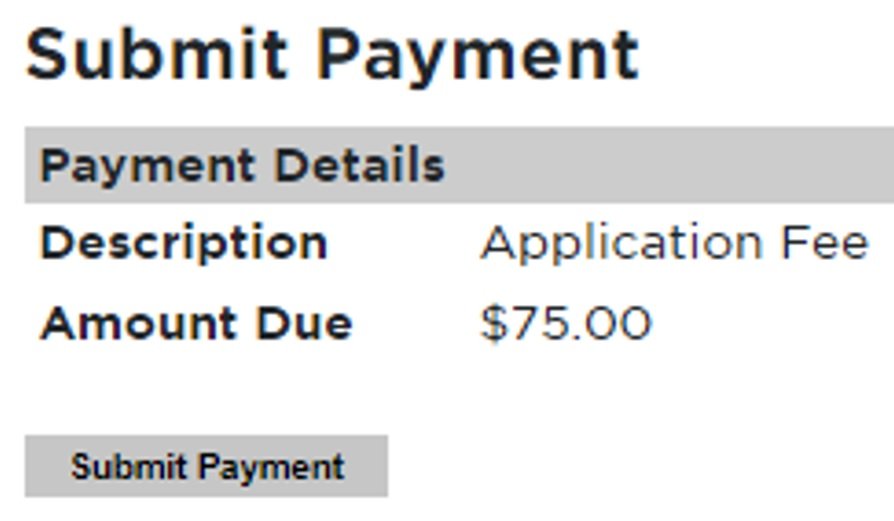
      Payment submission screen for a university application. The section titled 'Payment Details' lists the description as 'Application Fee' and the amount due as $75.00. A grey 'Submit Payment' button is located below the details.
  2. Review the information and click on Continue.
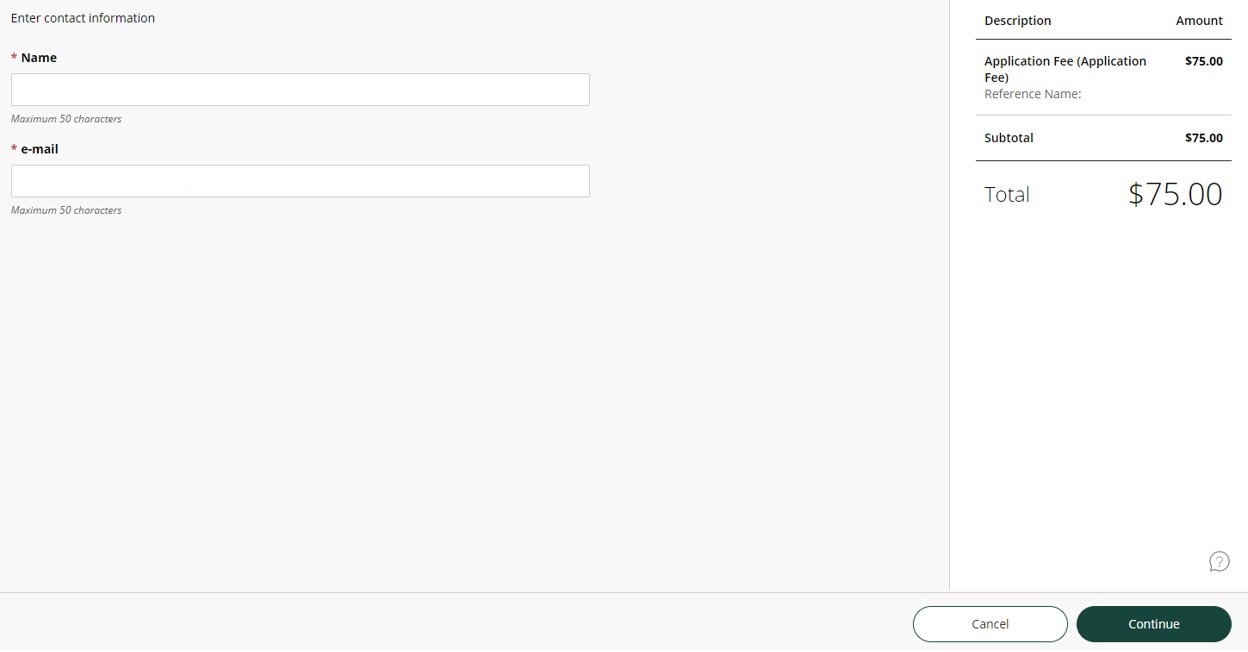
Payment contact information form for an application fee. On the left, there are required fields for Name and e-mail, each with a 50-character limit. On the right, a summary box displays a charge for 'Application Fee (Application Fee)' with a subtotal and total of $75.00. At the bottom are two buttons: 'Cancel' and 'Continue' (highlighted in green).
  1. Choose your method of payment (Credit/Debit card or Bank account Information). Enter all information required and click Continue.
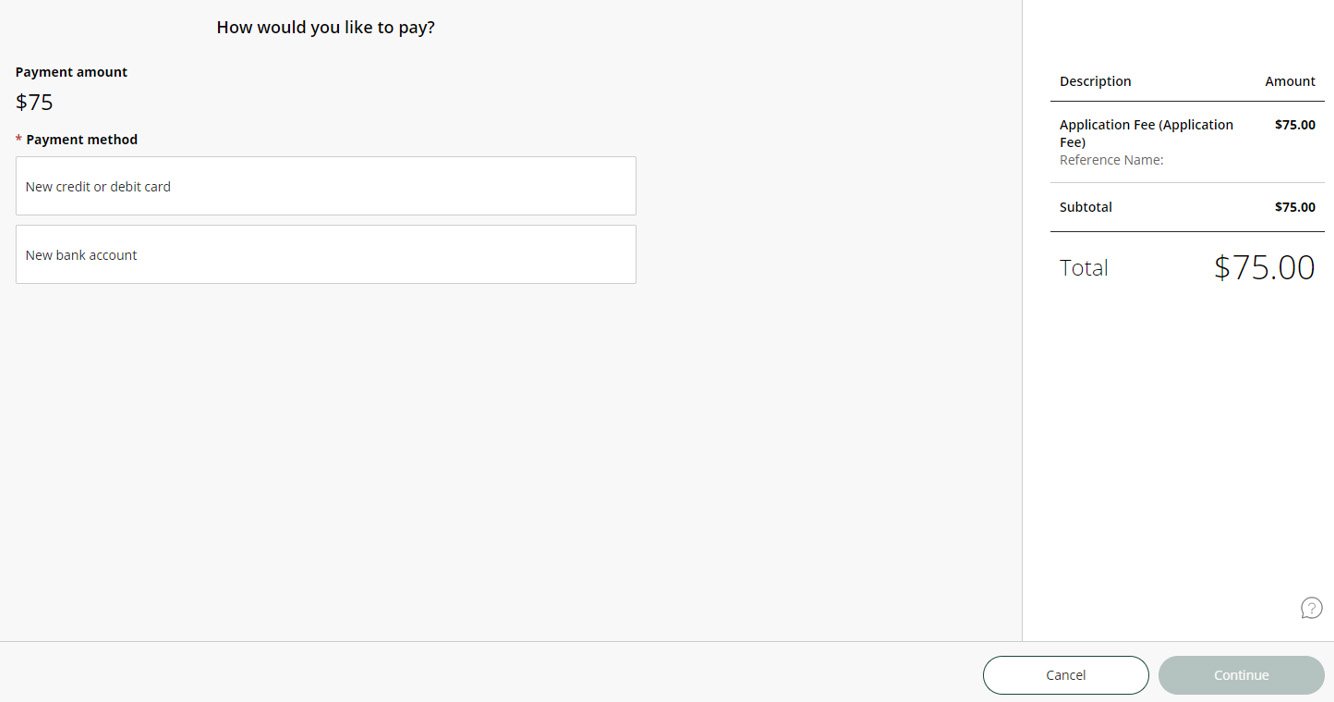
Payment selection page asking 'How would you like to pay?' for a $75 application fee. Two payment method options are displayed: 'New credit or debit card' and 'New bank account.' On the right side, a summary box lists 'Application Fee (Application Fee)' with a subtotal and total of $75.00. At the bottom are two buttons: 'Cancel' and a grayed-out 'Continue' button.
  1. Confirm and your payment has been submitted.
  2. Over the next few days and weeks, you can now log in to the student portal to review your application status updates, by going to https://explore.msu.edu/apply. Here you will choose the Returning Users: Log In link.
Michigan State University Office of Admissions 'Application management' page. The page provides two options: 'Log in' for returning users to continue an application, and 'Create an account' for first-time users to start a new application. A note at the bottom states that the online application cannot be used for re-admission. It advises former MSU students to call (517) 355-3300 or visit the linked 'Readmission Procedure' page for assistance.
  1. After your application is submitted and your fee is paid, you will receive a notice to log into your portal. This portal allows you to see status updates on your application, upload critical supplemental materials, and more.

    The unit to which you have applied will begin evaluating your application and supplemental materials. Please contact them for any questions regarding these materials or additional application requirements.
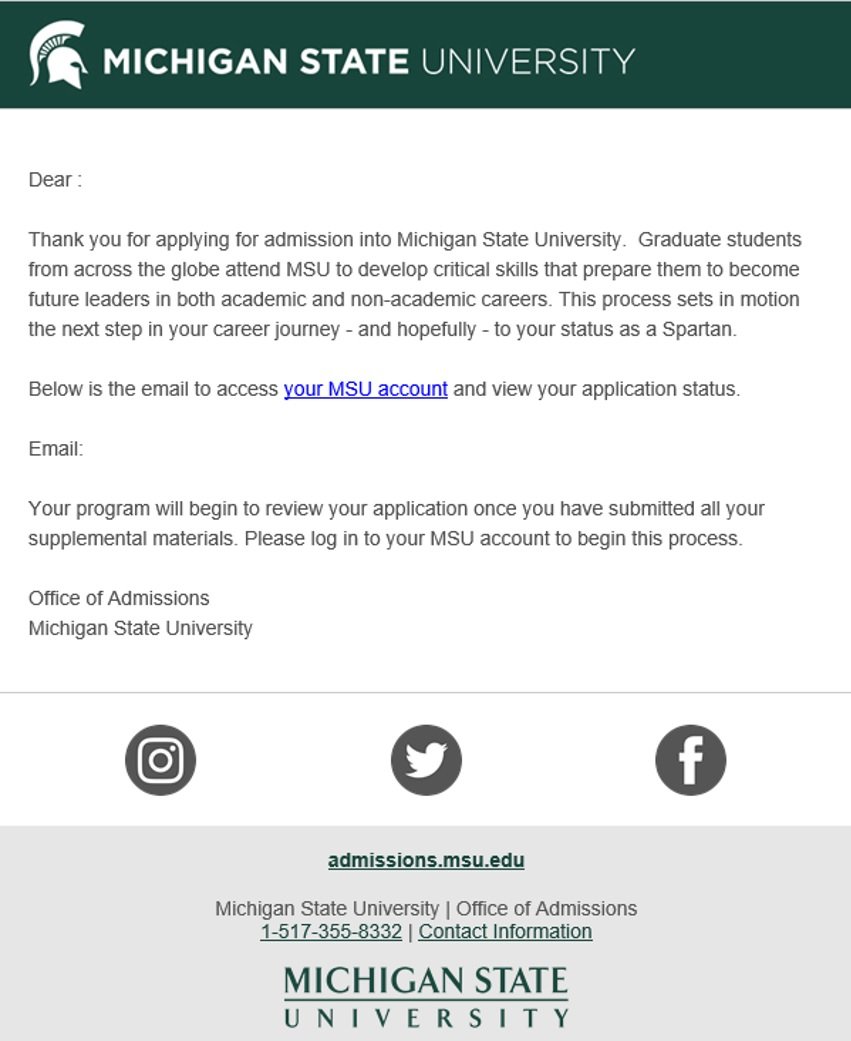
Email from the Office of Admissions at Michigan State University thanking the recipient for applying to a graduate program. The message highlights that MSU helps students become leaders in academic and non-academic careers. It provides a link to access the applicant’s MSU account and explains that the application will be reviewed after all supplemental materials are submitted. The bottom section includes social media icons (Instagram, Twitter, Facebook), a website URL (admissions.msu.edu), a phone number (1-517-355-8332), and a contact information link, along with the MSU logo.
  1. International applicants who have been recommended for admission will need to submit the following:
  2. Applicants who are missing some of the items listed above will receive occasional reminders to submit the items. Applicants should be vigilant in gathering and submitting these materials in a timely manner.